

5 interesting ways to transfer files from Android to iPhone
Not long ago, I tried to send a single photo from my Android phone to a friend who uses an iPhone. Nothing fancy—just one image that should have taken five seconds to share. Instead, it became an unexpected mini-adventure through settings menus, file-sharing apps, and confusing options that all seemed determined not to cooperate.
What should have been a quick task turned into a long search for a method that both devices agreed on. Android’s sharing options didn’t line up with iPhone’s limitations. Some apps required accounts, others compressed the image too much, and a few simply refused to work between the two platforms. At one point, it felt like the photo was trapped in a digital no-man’s-land.
It’s a small example of a much bigger issue: even in 2025, the simplest actions—like sending a photo between two major smartphone ecosystems—can still be far more complicated than they should be. Technology promises seamless connection, but sometimes all we want is to send a picture, and we end up discovering just how far from seamless things still are.
That moment made me realise that moving files between these two phones is not as straightforward as it should be. The systems work differently, and you need the right method depending on what you want to send.
This guide breaks down how to transfer files from Android to iPhone through five interesting methods, including the new Quick Share and AirDrop connection announced by Android on November 20.
Method 1: Move to iOS
Move to iOS is Apple’s official app for moving your data from an Android phone to a new iPhone. It is built to move your files safely and keep everything organised on the new device.
What you need before you start
Preparing Your Devices for a Smooth Transfer
Before starting any major transfer between an Android phone and an iPhone, a little preparation can save you from interruptions and failed attempts. The first step is to make sure both devices stay plugged in and connected to WiFi. A stable connection is essential—any drop in power or network can cause the transfer to stop midway.
It’s also a good idea to turn off mobile data on your Android phone. Some devices automatically switch between WiFi and mobile networks when the signal fluctuates, and this can disrupt the entire process. Keeping mobile data disabled ensures your phone remains locked to the same WiFi network from start to finish.
Finally, check your iPhone’s available storage before you begin. Transfers can fail simply because there isn’t enough space for everything you plan to move. A quick storage check helps you avoid surprises and ensures the transfer goes through without hiccups.
With these basic steps in place, you’re setting yourself up for a smoother, more reliable device-to-device transfer.
Move to iOS only works during the first setup of a new iPhone. If you have already set up your iPhone, you must erase it and start again to access the transfer screen.
How to transfer your data
- On your Android phone, download and open the Move to iOS app.
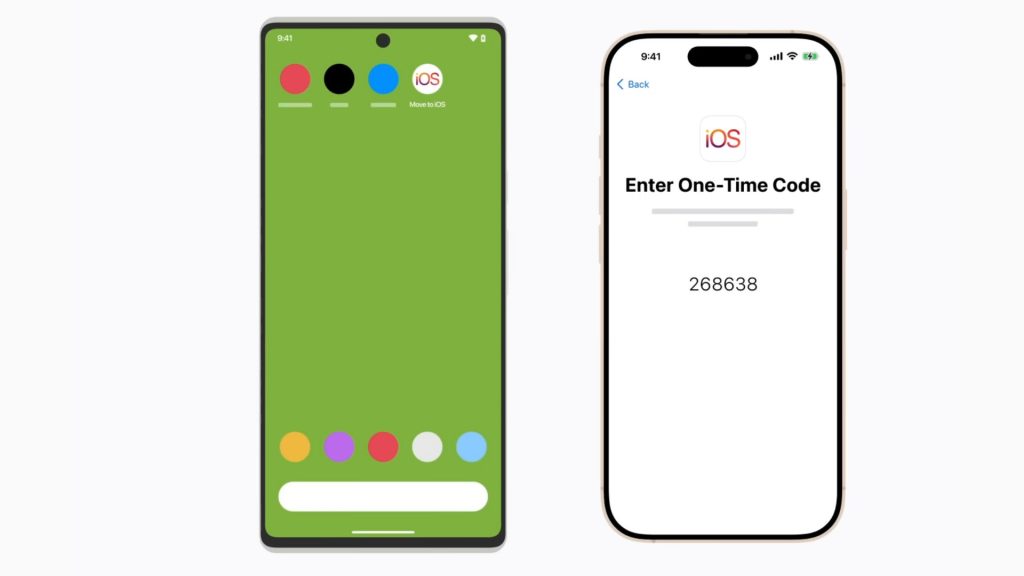
Image source: Apple Support on YouTube
- Turn on your new iPhone and start the setup process.
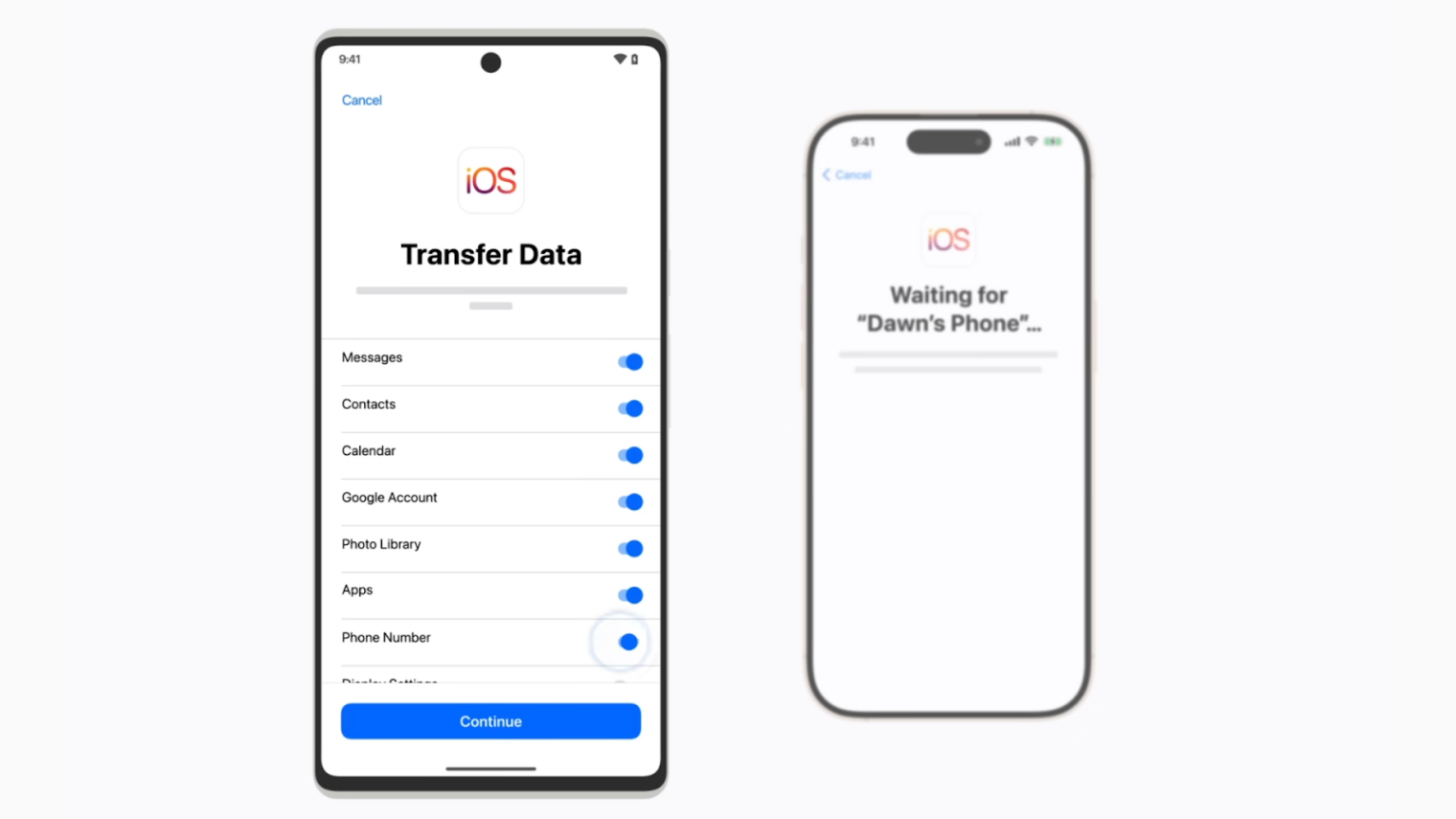
- When you reach the Transfer Your Apps and Data screen, choose From Android and tap Continue.
- Your iPhone will show a code. Enter this code on the Move to iOS app on your Android phone. This connects both devices through a private WiFi link.
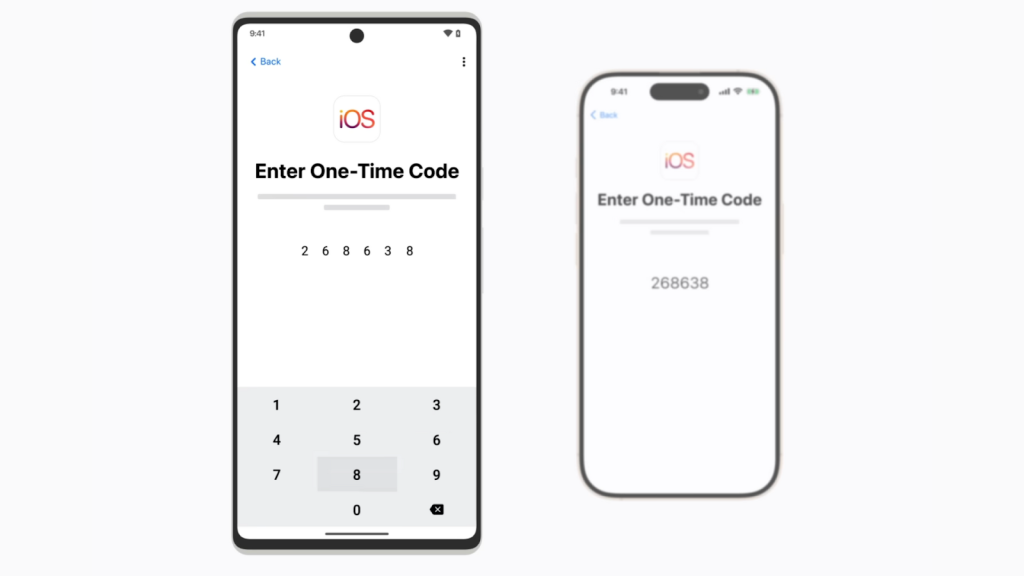
Image source: Apple Support on YouTube
- Pick the files and data you want to move, keep both devices close, and wait for the transfer bar to complete.
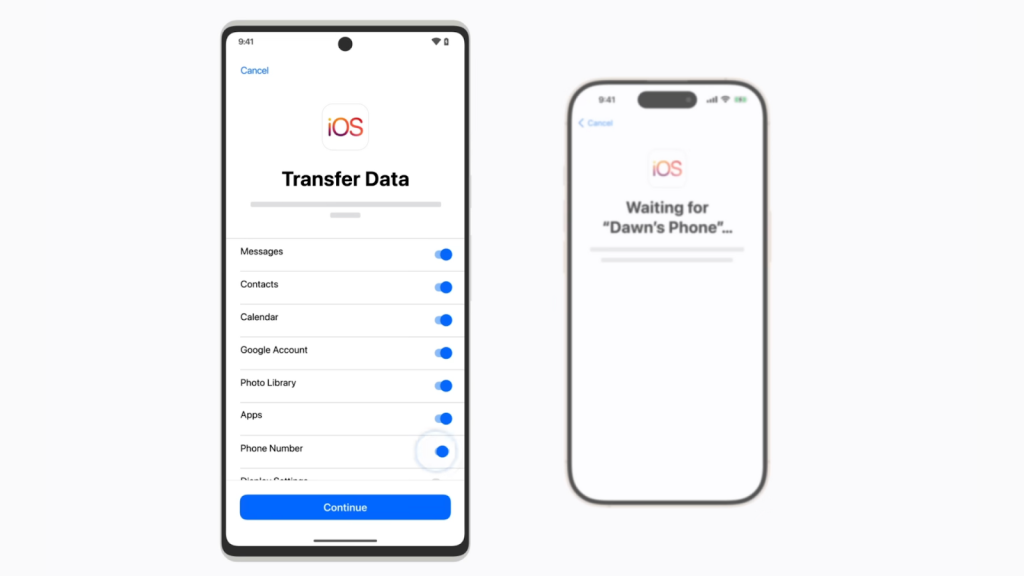
Image source: Apple Support on YouTube
- Tap Done on your Android phone and continue setting up your iPhone.
What Move to iOS can transfer
Apple’s Move to iOS tool streamlines the process of switching from an Android phone to an iPhone by handling much of the heavy lifting for you. With it, you can migrate your contacts, messages, call history, calendars, photos, videos, and documents—essentially the everyday essentials you don’t want to leave behind. The app also supports transferring your WhatsApp chat history, preserving years of conversations that many users consider irreplaceable.
Move to iOS goes beyond just files and media. It brings over certain device settings, such as display preferences and web bookmarks, helping your new iPhone feel a little more familiar right away. Even your app ecosystem gets some help: any free apps that exist on both Google Play and the App Store are automatically matched, making them easy to download on your new device without hunting them down manually.
All of this adds up to a transition that feels smoother and far less overwhelming, especially for anyone switching platforms for the first time.
This method works well if you want a smooth transition from Android to a brand-new iPhone.
Method 2: Direct sharing between Android and iPhone with Quick Share and AirDrop
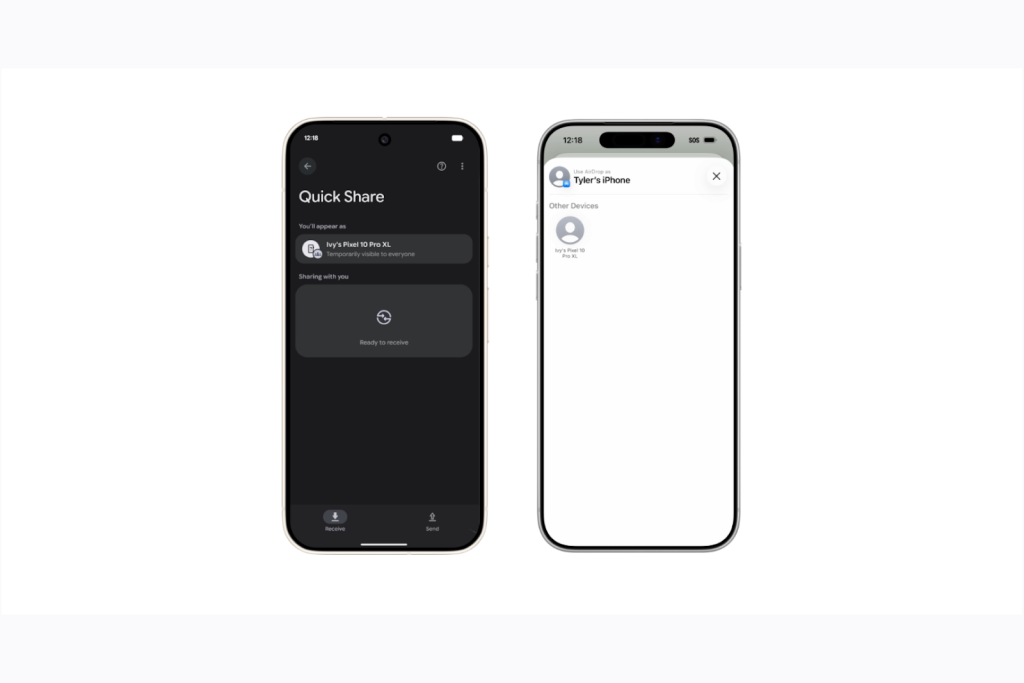
Image source: Google blog
Android and iPhone Get Closer: Quick Share Meets AirDrop
Google has introduced a major update that finally bridges one of the most frustrating gaps between Android and iPhone users. With the latest rollout, Android devices can now share files directly with iPhones through Quick Share and AirDrop compatibility. This means sending photos, videos, documents, and other files across platforms is becoming faster and far more seamless than before.
The feature debuts with the Pixel 10 family, giving early adopters a first look at what cross-platform sharing should feel like. Google plans to expand support to more Android phones over time, gradually bringing this long-awaited convenience to a wider audience.
For years, ecosystems have made sharing between Android and iPhone unnecessarily difficult. This update marks a meaningful step toward a more connected, less restrictive experience—one where sending a simple file doesn’t require workarounds, apps, or technical gymnastics.
How to set it up on your Pixel 10
- Open Settings.
- Tap your name at the top, then go to All services, Privacy and security, and System services.
- Update the Quick Share Extension and restart your phone.
How to set it up on your iPhone
- Open Settings.
- Go to General, then AirDrop.
- Set your AirDrop to Everyone so your phone can be discovered.
Sending a file from Pixel 10 to iPhone
- Open the file you want to send and tap the Share icon.
- Choose Quick Share.
- Your phone will find nearby devices. Pick the iPhone from the list.
- The iPhone will get a standard AirDrop prompt. Once the user accepts, the file transfers instantly.
Sending a file from iPhone to Pixel 10
- Make sure your Pixel 10 Quick Share settings allow discovery.
- On the iPhone, open the file and tap the Share icon.
- Choose AirDrop and select the Pixel 10.
- Accept the incoming file on your Pixel 10.
This update removes the barrier between the two platforms, making simple file sharing much easier.
Method 3: Using cloud storage for selective transfers
Cloud storage is a simple way to move files without connecting both devices at once. It works well when you only want to move photos, videos, or documents rather than a complete phone switch.
Using Google Drive
Google Drive is easy to use since many Android phones already sync files through a Google Account.
- On your Android phone, open Google Drive and upload the files you want to move.
- On your iPhone, download Google Drive from the App Store and sign in with the same Google Account.
- Open the files you need and save them to your iPhone or into another app.
Large uploads are limited. Google sets a daily upload cap of 750 GB. If you have huge folders or heavy video files, you might need to upload in batches and wait for the next day before continuing.
Using Dropbox
Dropbox lets you send huge single files via a link.
- On your Android phone, open Dropbox and choose the files you want to send.
- Create a transfer link, set a name or expiration date if needed, and copy the link.
- Send the link to your iPhone through email or messages.
- Open the link on your iPhone and download the file.
File size limits depend on your Dropbox plan. Free accounts allow up to 2 GB per transfer, while paid plans support larger sizes and longer expiration times.
Cloud storage is a good choice when you want flexibility and you are not in a hurry to move everything at once.
Method 4: Using a computer for a wired transfer
When a Wired Transfer Is the Better Choice
For users who prefer full control over their files—or simply want to avoid the unpredictability of wireless transfers—a wired transfer remains a reliable option. This method is especially helpful when moving large media files such as long videos, RAW photos, or extensive project folders that might exceed cloud limits or take ages to upload over a slow internet connection.
A wired transfer is straightforward and happens in two clear stages. First, you copy the files from your Android phone to your computer, organizing them however you like as they move over. Once everything is safely stored on the computer, you transfer those files to your iPhone using Finder (on macOS) or iTunes (on Windows). Because there’s no dependency on WiFi strength, bandwidth, or third-party services, the process is predictable and efficient.
While it may feel a bit more hands-on, a wired transfer offers certainty—and sometimes, that’s exactly what you need.
Stage 1: Moving files from Android to your computer
- Connect your Android phone to your computer with a USB cable, then select File Transfer on the phone.
- Open your file manager on the computer. Look for your photos and videos in the DCIM folder, your music in the Music folder, and your documents in the Documents folder.
- Copy the files you want and save them in a folder on your computer.
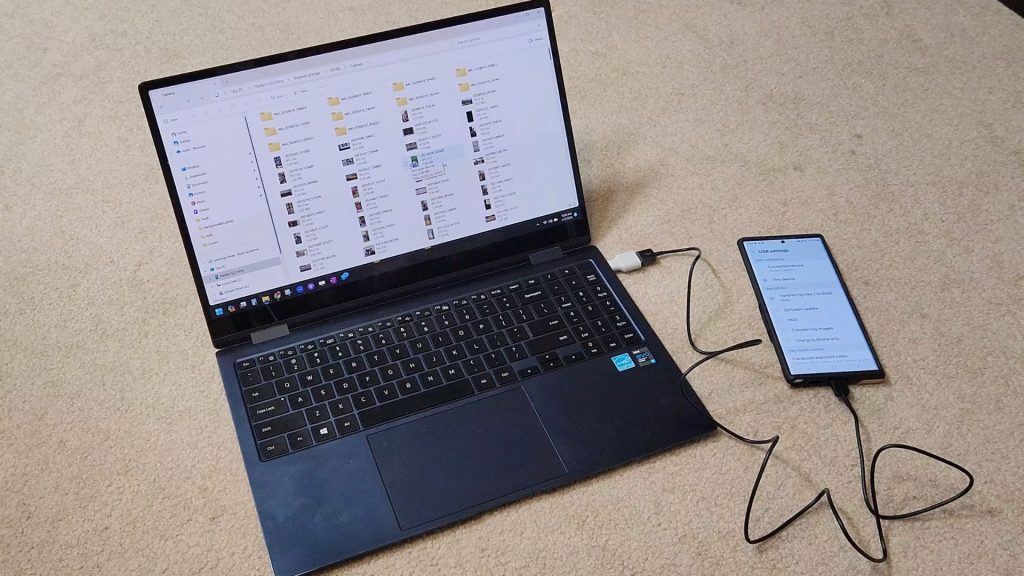
Image source: My Andy Buck on YouTube
Stage 2: Moving files from your computer to your iPhone
- Connect your iPhone. On a Mac, open Finder if you use newer macOS versions or open iTunes on older ones. On Windows, open the Apple Devices app or iTunes.
- For photos and videos, select your iPhone in the app, then sync the folder you saved earlier.
- For music, drag the songs into the Music app on your Mac, the Music section of Apple Devices, or iTunes, then sync your iPhone.
- For books and PDFs, add them to the Books app or the Apple Devices app and sync again.
Wired transfers can still be limited by cable speed. Some Android phones use slower USB standards, so huge files might take longer to move than expected.
Method 5: Using local file sharing apps
Local file-sharing apps let you move files quickly without cables or cloud uploads. They work by creating a direct connection between your Android phone and your iPhone.
Send Anywhere
Send Anywhere app uses a short code to move files in real time.
- Install the app on both your Android phone and your iPhone.
- On your Android phone, tap Send, then select the files you want. You will get a 6-digit code.
- On your iPhone, open the app, choose Receive, and enter the code.
- The files are transferred immediately over your local Wi-Fi connection.
SHAREit
SHAREit app creates a temporary hotspot from your Android phone that your iPhone connects to.
- On your Android phone, open SHAREit and choose the Connect to iOS option. The phone creates a hotspot.
- On your iPhone, go to WiFi settings and join that hotspot.
- Send the files from your Android phone. On your iPhone, tap the received file and save it to your Camera Roll or another folder.
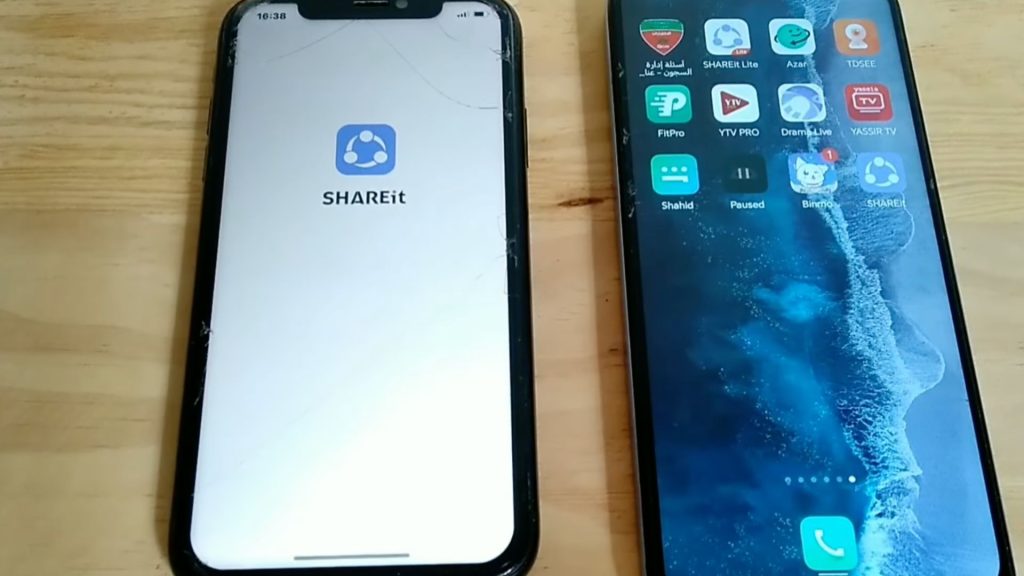
Image source: atlasyy on YouTube
What to keep in mind
These apps are fast and flexible, but you should always check the developer’s reputation and privacy policy before using them. Since they are not built into Android or iOS, their security depends on how the app is designed.